Installing ClearOS 6.5 with graphical UI on XenServer 6.2
XenServer provides several templates for different operation systems of its hosted virtual machines. Unfortunately there is no template for ClearOS and so I...
XenServer provides several templates for different operation systems of its hosted virtual machines.
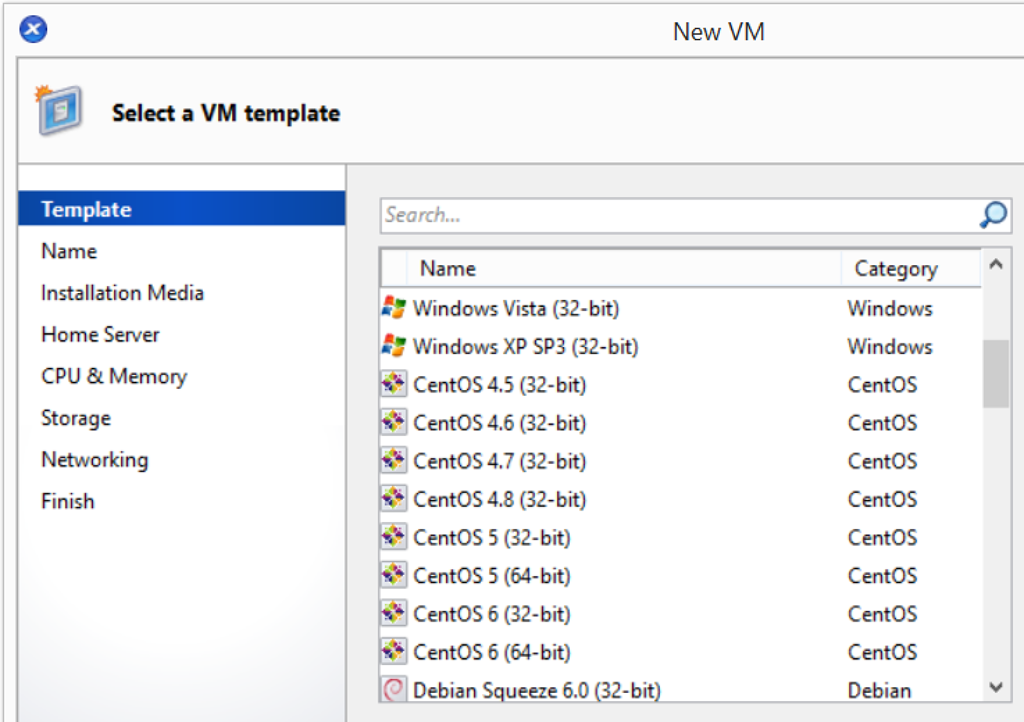
Unfortunately there is no template for ClearOS and so I tried some of the in my opinion best fitting templates.
Here is the list of my attempts:
CentOS 6 (64 bit)
Installation is possible in simple text only mode (black & white). Disabling Viridian doesn’t changed anything. (at the end of the article you will see what I mean with Viridian)
There is a boot parameter “graphical" per default set, but this means obviously something else or doesn’t work. Also I found a blog article where somebody mentioned to add the boot parameter “text”. I was surprised to read this hint – why a parameter named “text” should switch to a graphical environment? And as expected that parameter brought no help.
Debian Wheezy 7.0 (64-bit)
This virtual machine was not able to start at all and immediately returned:
Jan 9, 2015 6:45:09 PM Error: Starting VM ‘Debian Wheezy 7.0 (64-bit) (1)’ - The bootloader for this VM returned an error – did the VM installation succeed? INVALID_SOURCE Unable to access a required file in the specified repository: <file:///tmp/cdrom-repo-8Q3Fb0/install/vmlinuz>.

Red Hat Enterprise Linux 6 (64-bit)
Same experiences as with CentOS. OK – this was to expect, both systems rely on the same sources.
Windows
Because I could install Windows 10 pretty easy on the Windows 8 template, I thought to give that combination a try. But during the “Storage” step I realized, that the disc must be 24GB in minimum. That was to much and I stopped that try here.
SUSE Linux Enterprise Server 11 SP2 (64-bit)
Same result as with “Debian Wheezy 7.0 (64-bit)”.
Oracle Enterprise Linux 6 (64-bit)
Same experiences as with CentOS.
Ubuntu Precise Pangolin 12.04 (64-bit)
Same result as with “Debian Wheezy 7.0 (64-bit)”. This is not surprising. Debian is the base for Ubuntu.
Other install media
Installation is possible in simple text only mode (black & white).
Other install media – disabled Viridian
As described earlier there is the possibility to deactivate Viridian. I don’t know in detail what happens inside the system, but it makes the difference.
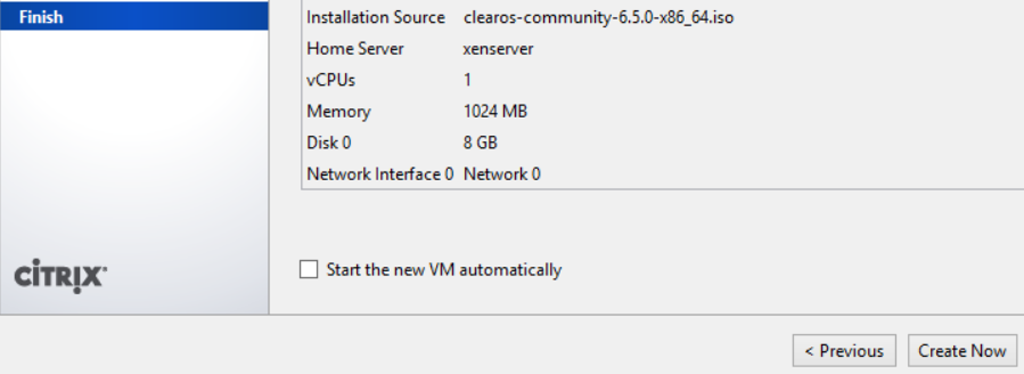
You have to avoid an automatic boot after finishing the configuration. Un-tick this checkbox in the last step and create the new machine:
Now switch to the console of the XenServer
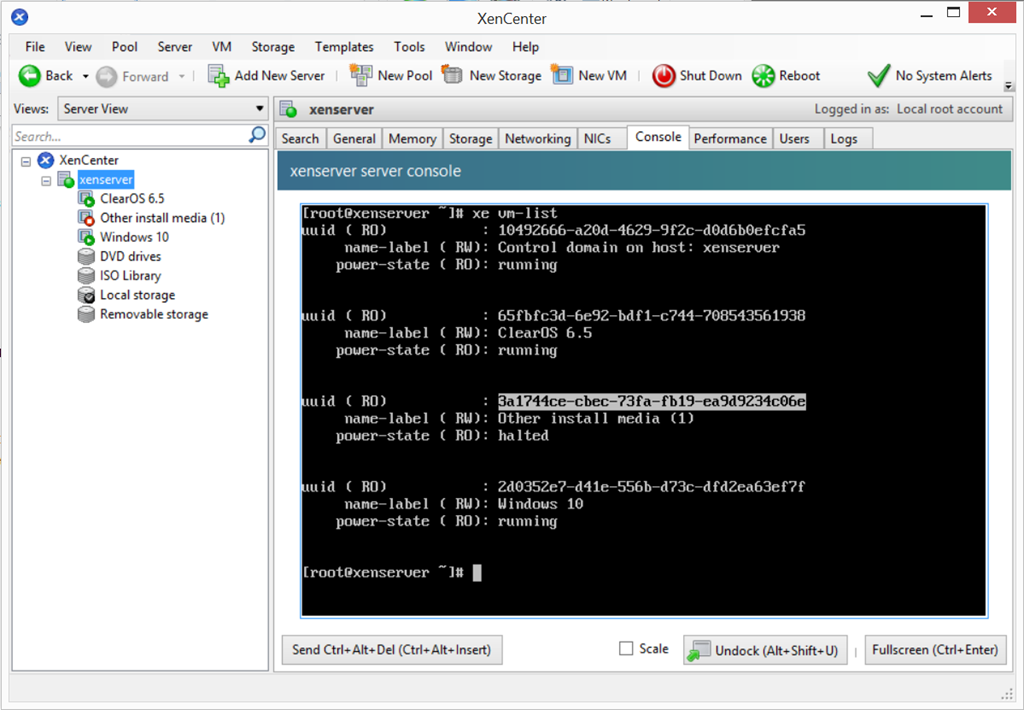
and run this command
xe vm-list
Search for the the UUID of the new machine (here 3a1744ce-cbec-73fa-fb19-ea9d9234c06e).
This UUID you use in the next command
xe vm-param-set uuid=“3a1744ce-cbec-73fa-fb19-ea9d9234c06e” platform:viridian=false
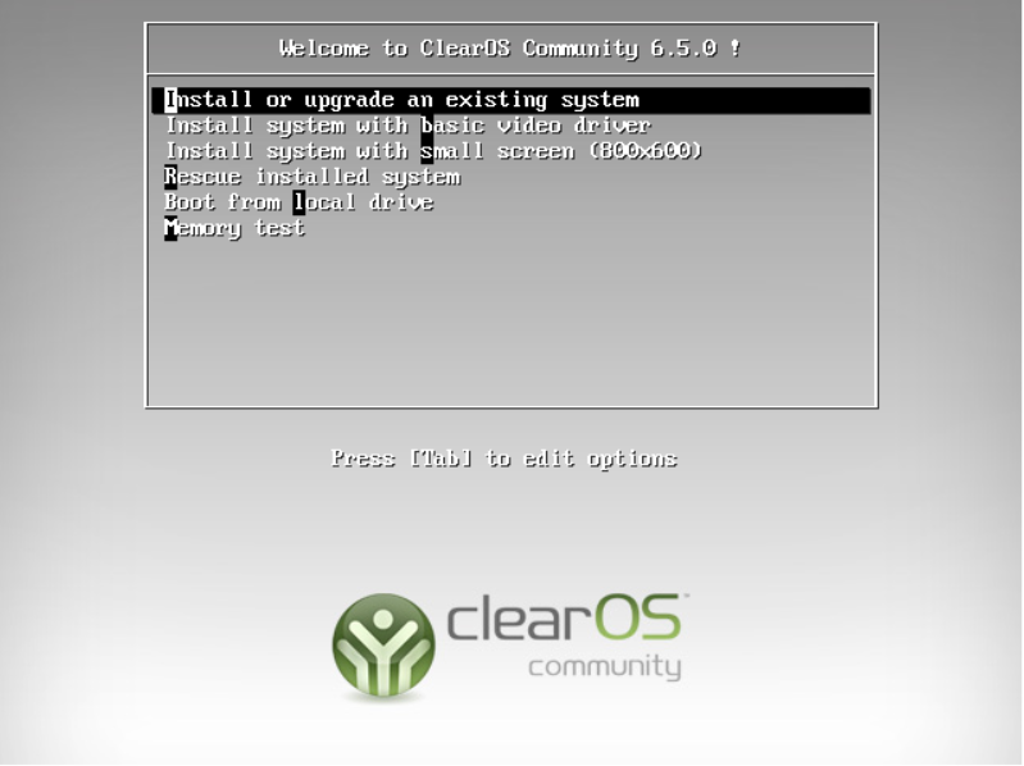
Now you can start this virtual machine and you will get an installer with UI
???
This is a note to myself or for you in case you found that article via Google.
I can remember that one virtual machine template or configuration let the installation hang after a few seconds. The last two lines were:
trying to remount root filesystem read write… done mounting /tmp as tmpfs… done
Use one of the other templates …