Shortcut for indention decreasing and increasing in list styles
Context Using the CTRL + or shortcuts to move between different heading levels works perfect. But if you use list styles it doesn’t switch the other defined...
·1 min read
Context
Using the CTRL + imageor imageshortcuts to move between different heading levels works perfect. But if you use list styles it doesn’t switch the other defined types than headings. That’s because these shortcuts are the OutlinePromote and OutlineDemote shortcuts.
Solution
If you like to switch between the levels of a list style you have to use the decrease and increase indent buttons in the toolbar (image). To access this functionality via shortcut you have to add own one.
Remarks
Customize shortcuts to allow de- and increasing in list styles via shortcuts
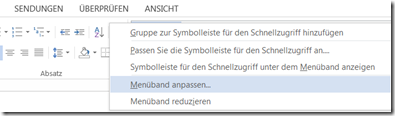
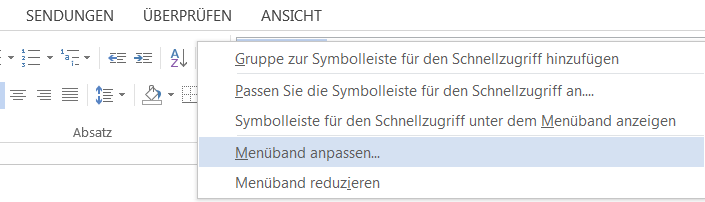
Start customizing with right mouse click on ribbon element and select “Customize the Ribbon…”
image
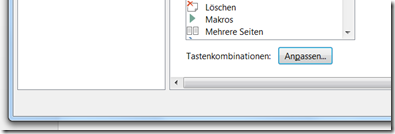
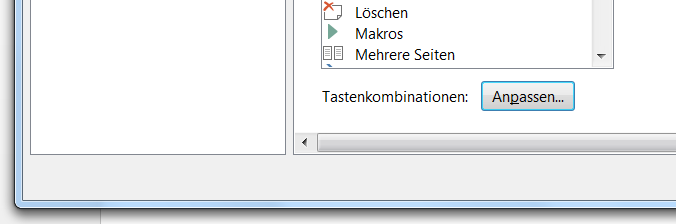
Press “Customize…” button by “Keyboard shortcuts:”
image
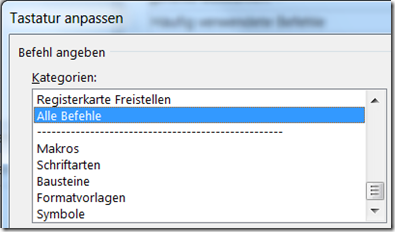
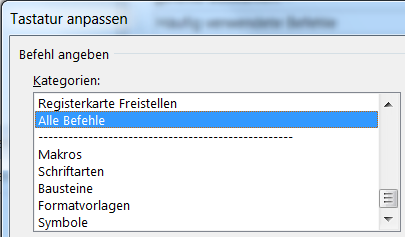
Select “All commands” in left listbox “Categories:”
image
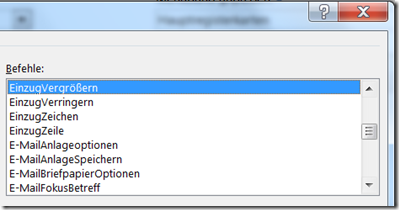
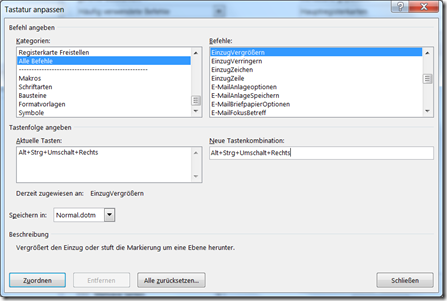
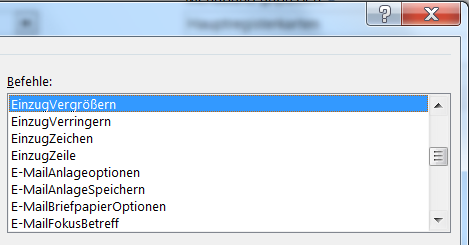
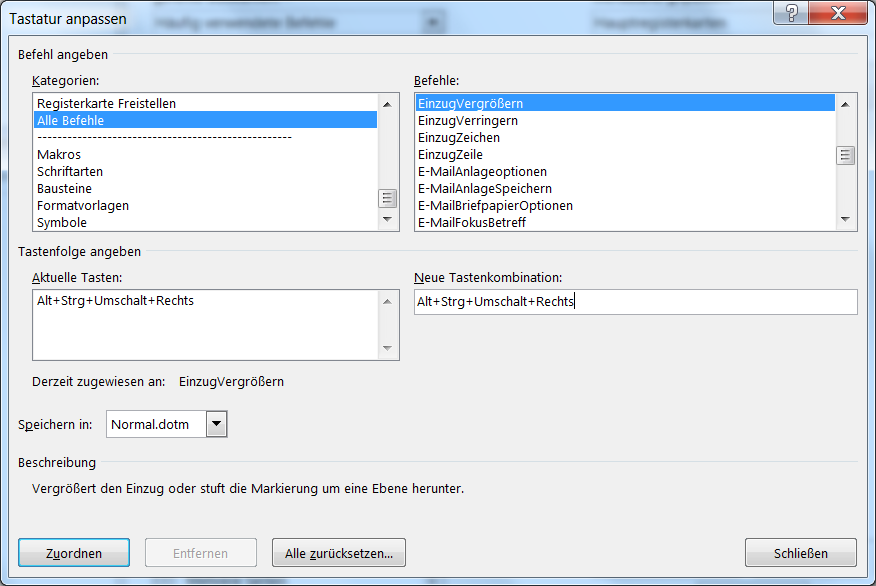
Select “IncreaseIndent” in the right listbox “Commands:”
image
Set cursor in “Press new shortcut key:” field and define your shortcut (e.g. Alt + Ctrl + Shift + image) and assign it via “Assign” button
image