Activating RDP access for Windows 10
Enable Remote Desktop access to a Windows 10 virtual machine hosted on XenServer and connect directly from macOS for a smoother experience.
Today I’ve installed the Technology Preview of Windows 10 onto my Xen Server. With the XenCenter program under an existing Windows 8.1 installation it was an easy task. But this Win 8.1 runs virtualized via Parallels and Bootcamp on my MacBook. That creates a double windowing – first the virtualized window of Win 8.1 with XenCenter and inside XenCenter the windows of the XenServer hosted Windows 10. This is not nice.
But we can shortcut that by using the Remote Desktop App for Mac OS X (you can find it in the App Store). Configuring a remote desktop connection is easy but it ended up in an error, that the connection couldn’t be established. Sounds like an issue where the RDP access has to be opened on the Windows 10.
And right, after doing the following I got my RDP session with a much better user experience – no lacks anymore and fluent like a local session.
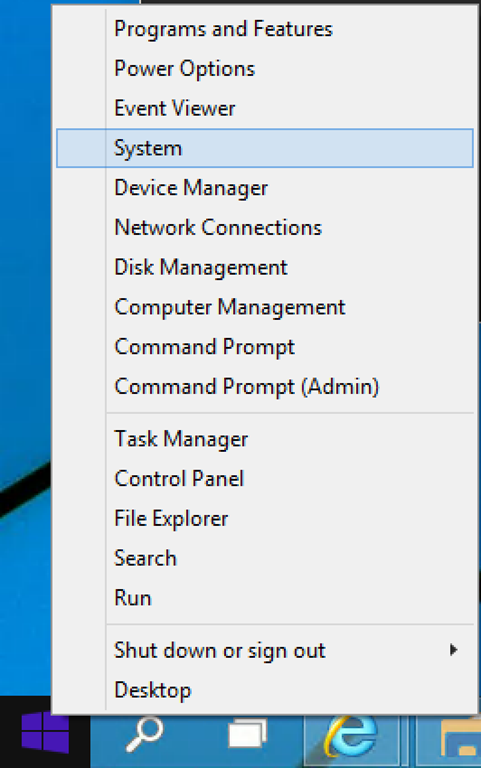
Right click Start button and chose System

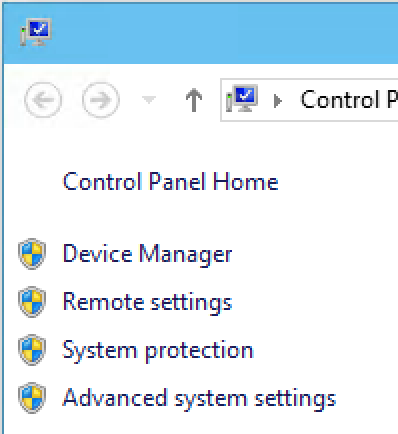
Click the link Remote Settings

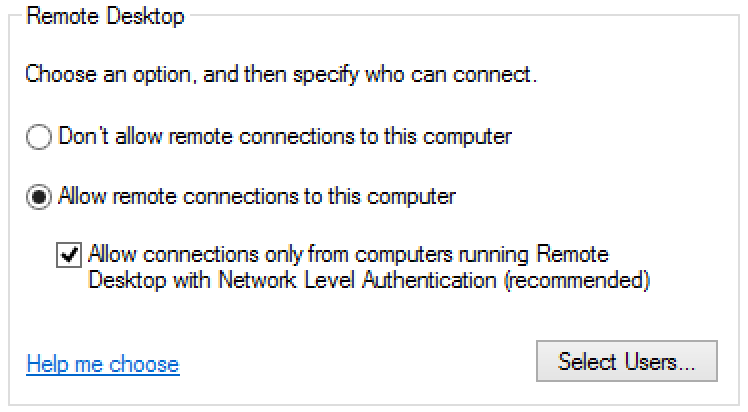
Activate Allow remote connections to this computer and tick the checkbox

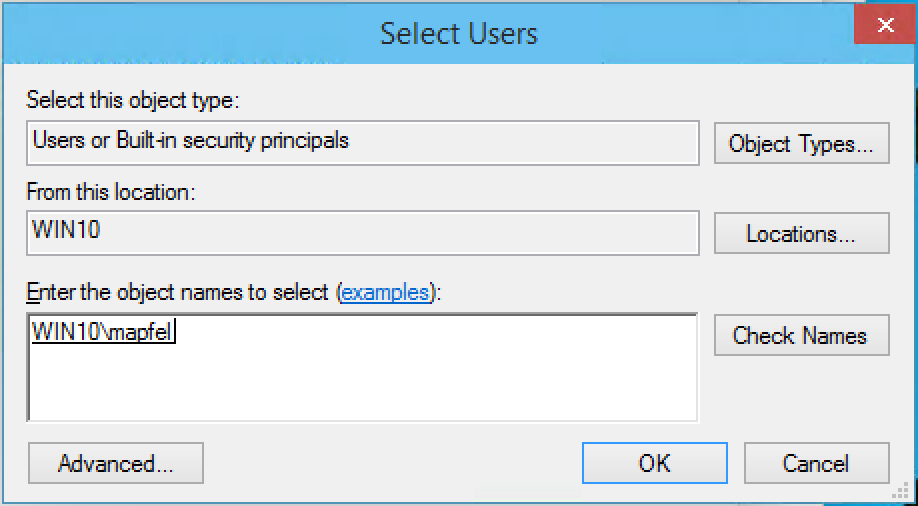
Click the button Select Users
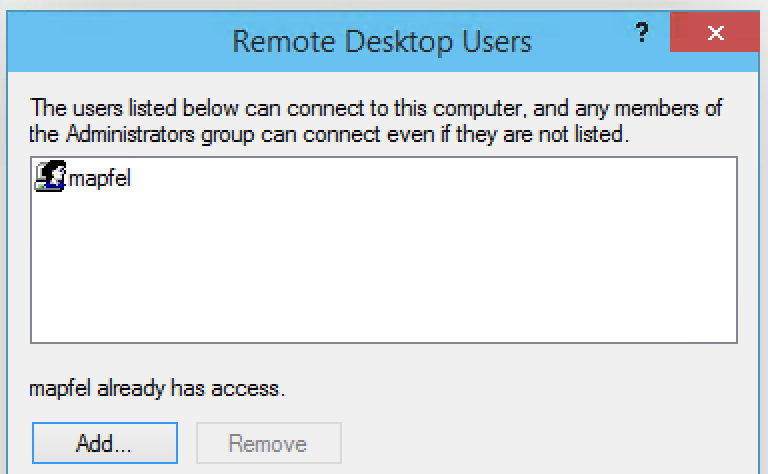
Add your account(s) to the list

In the Select Users dialog you have to use this schema:
<your_machine_name>\<your_login>Use the button Check Names to resolve and/or check it